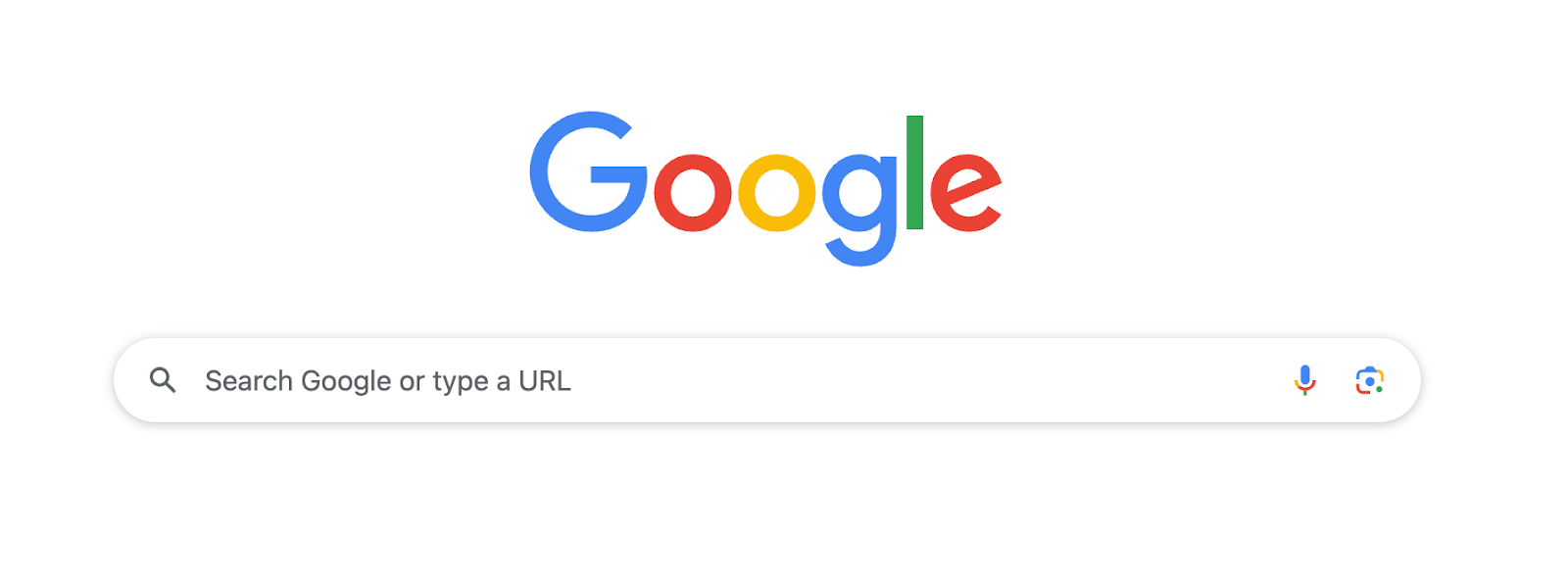

You see it all the time at the top of your browser: “search google or type a url.” It shows up in Chrome, on Android phones, on Windows laptops, even in other browsers with slightly different words. But what does that line actually want you to do?
That little box at the top is more powerful than it looks. It can work in two ways at once. It acts as a search bar that sends your words to Google or another search engine, and it also acts as an address bar that takes you straight to a specific site.
In this guide, you will learn what that phrase really means, what a URL is, when you should search, when you should type a web address, and how to keep your browsing safe and fast. By the end, you will feel more confident every time you sit down at a computer or pick up your phone.
Understanding the Browser Address Bar: Search Google or Type a URL
At the very top of your browser, you see a long box. In Chrome, Edge, Firefox, Safari, and most mobile browsers, this one box does double duty. It used to be that the address bar and the search box were separate. Today, most browsers mix them into a single smart bar. Some people call it an “omnibox,” but you can just think of it as your main command center for the web.
When you type facebook.com and press Enter, the browser treats what you typed as a web address and takes you straight there. When you type “cute dog videos” and press Enter, the browser treats your words as a search and sends them to Google or another search engine.
On your phone, it works the same way. The box at the top of Chrome, Safari, or Samsung Internet can handle both. This means you do not have to look for a separate search field on Google.com. You just type what you want into the top bar and let the browser figure out what you meant.
Once you get used to this idea, the message “search google or type a url” starts to make sense. The browser is really saying: “Tell me where to go, or tell me what you want to find.”
What Is a URL and How Is It Different From a Google Search?
A URL is the exact address of a page on the internet. You can think of it like a home address for a website. If someone gives you their street address, you can go right to their house. A URL does the same for a web page.
Some simple URL examples:
google.comhttps://www.youtube.comhttps://www.yourbank.com/login
A Google search is different. When you search, you are not giving an exact address. You are describing what you want and asking Google to suggest places to visit. For example:
- “funny cat videos”
- “pizza near me”
- “how to reset my gmail password”
Here is a quick comparison.
| Thing | URL | Google search |
|---|---|---|
| What you type | Exact address, like facebook.com | Ideas or questions, like “best budget laptop” |
| Purpose | Go straight to one site | See many sites that might match |
| When to use | You already know the website you want | You do not know where to go yet |
| What you see after | The website opens | A results page with links, ads, and answers |
Once you see this difference, choosing between a URL and a search gets easier.
Why Your Browser Says “Search Google or Type a URL”
Browsers try to keep things simple, so they let one box handle both jobs. Instead of giving you one place to search and a different place for web addresses, they combine them. That is why Chrome shows the phrase “search google or type a url.”
Behind the scenes, the browser looks at what you typed. If it clearly looks like an address, such as amazon.com, it goes straight there. If it looks like regular words, such as “cheap headphones,” it sends your text to a search engine.
By default, that search engine is often Google, which is why the phrase mentions Google by name. Some browsers might show other messages, like “Search or enter web address,” but the idea stays the same.
You can change this default search engine in your browser settings. For example, you might pick Bing, DuckDuckGo, or another option you prefer. The line at the top might still mention Google in some cases, but your searches can go somewhere else. What matters is that you know the bar can both search and jump straight to a site.
How To Decide: Should You Search Google or Type a URL?
Now for the part that helps you in daily life. You sit at your computer, open your browser, and see that empty bar at the top. Do you type a URL or a search?
Use this simple rule: if you know the exact site, type the URL. If you are still looking for ideas, answers, or choices, use a search.
When It Is Better To Type a URL Directly
Typing a URL is perfect when you already know where you want to go. Some common examples:
- You want to check Facebook, so you type
facebook.com - You want to shop on Amazon, so you type
amazon.com - You want to sign in to your bank, so you type the bank’s address
- You need your school or work portal, and you know the URL
Why this helps:
- It is faster. You skip the search results page and go straight to the site.
- It is safer. You are less likely to click on a fake result or ad that pretends to be the site you need.
- It gives a bit more privacy. There is no extra search page in between, so you share slightly less about what you are doing.
Be careful with sensitive sites like banking, health, or work logins. Type the address slowly and check the spelling. For example, yourbank.com is very different from yourbannk.com. Scam sites often use small spelling tricks to catch people who type fast and do not look twice.
If you visit the same sites often, you can also save them as bookmarks, so you do not have to type the full URL every time.
When You Should Use Google Search Instead of a URL
Use a search when you are not sure where you want to end up. You might know your topic, but not which site is best. For example:
- “best running shoes for flat feet”
- “restaurants open late near me”
- “cheap flights from Chicago to Miami”
- “how to fix slow wifi”
In these cases, Google (or another search engine) gives you choices. You get:
- Several websites to compare
- Reviews and ratings
- Maps, addresses, and opening hours
- Sometimes instant answers or AI overviews right on the results page
You get better results when you use clear words and a few key terms. Instead of typing “shoes,” try “lightweight running shoes for women.” Instead of “phone problem,” try “iphone 12 screen not working.”
Think of search like talking to a helpful librarian. If you give more detail, you get better suggestions.
Avoiding Common Mistakes That Slow You Down
A few small habits can waste time or cause confusion. Here are some mistakes to avoid.
- Treating questions like URLs. People sometimes type “why is my internet not working.com” in the bar. The browser will treat that like a bad address and show an error. Just type the question as normal words instead.
- Searching for simple URLs. If you know the site is
youtube.com, typing “youtube.com” into Google is slower. You load the search page, then click again. Put the address in the bar and press Enter instead. - Clicking the first result without looking. The first link might be an ad or even a fake copy of the site you want. Always check the small web address under the title in the result.
Look at the short domain name, the main part like amazon.com or wikipedia.org. If it shows extra words at the front or a strange ending, pause and think before you click. This simple habit saves time and can protect you from trouble.
Staying Safe and Smart When You Search or Type a URL
Speed is great, but safety matters even more. With the same top bar handling search and URLs, you want to build a few smart habits. They help you avoid fake sites, scams, and privacy issues.
How To Tell If a Website Address Is Safe
No trick is perfect, but you can spot many unsafe pages with a quick check.
Look for:
- HTTPS and the lock icon. In the address bar, you should see
https://and a small lock next to the URL, especially on banking or login pages. This means the connection is encrypted. - Correct spelling of the domain. Scammers often change one small letter, such as
paypa1.cominstead ofpaypal.com, or add extra characters, likeamaz0n.comwith a zero. - No strange extra words. A safe bank site might be
yourbank.com/login. A risky copy might beyourbank-secure-login-help.com.
For important accounts, like email, bank, work, or school, avoid clicking random links from emails or messages. It is safer to type the address yourself or use a saved bookmark. That way, even if someone sends you a fake email, you do not land on their phishing page.
Using Google Search Results Without Getting Tricked
Search results are handy, but they can be crowded. Learn how to read them.
- Ads are labeled. On Google, ads usually have a small tag like “Sponsored” near them. They are not always bad, but they are paid spots, not always the best or official result.
- Check the small URL. Under each blue link title, there is a small gray or green web address. This shows where the link will take you. Make sure it looks like a trusted domain before you click.
- Beware of fake download buttons. Some shady sites fill the page with bright “Download” or “Start now” buttons that are actually ads for other software. Use official app stores or the real product website whenever you can.
If you want a popular program, such as a web browser or video player, search for its name, then pick the result with the real brand domain, like mozilla.org for Firefox or videolan.org for VLC. Avoid sites that promise “cracked,” “free full,” or “license keys.” These pages often hide malware or other nasty surprises.
Simple Tips To Keep Your Searches Private
Most browsers and search engines save some history of what you search and where you go. If that bothers you, there are a few simple habits that help.
- Use incognito or private mode when you do not want your searches stored in your local history. This does not make you invisible online, but it keeps that activity off your device’s normal history.
- From time to time, clear your browsing history and cookies in your browser settings. This can also fix some odd website problems.
- Avoid typing very personal data into a search bar, like your full address plus your full name together, private ID numbers, or sensitive health details. If you must share that data, do it on a trusted, secure site, not a search page.
If you care a lot about privacy, you might also choose a search engine that focuses on it, like DuckDuckGo or Startpage, and set it as your default.
Quick Tips To Use “Search Google or Type a URL” Like a Pro
Once you understand how the address bar works, you can also use it to save time. A few shortcuts make daily browsing smoother and less stressful.
Time-Saving Shortcuts in the Address Bar
Here are some simple tricks you can try right away.
- Use it as a quick calculator. Type
45*12or120/8in the bar and press Enter. The search results will show the answer at the top. - Check weather and facts. Type “weather New York,” “time in Tokyo,” or “10 USD in EUR.” You get instant answers without clicking other sites.
- Let auto-complete do the work. After you visit a site a few times, your browser learns it. Start typing
youand it might suggestyoutube.com. Press Enter to accept. - Jump to the bar fast. On Windows, press
Ctrl + L. On a Mac, pressCommand + L. This highlights the address bar so you can start typing right away. - Press Enter on full URLs. If you type a full address like
https://www.news.com, pressing Enter takes you there directly.
These small habits cut down on extra clicks and make the top bar feel more like a command line for your online life.
When To Change Your Default Search Engine
Even if your browser says “search google or type a url,” you are not stuck with Google. Many browsers let you switch to another search engine.
Some common options:
- Bing for strong picture search and built-in AI tools
- DuckDuckGo for more privacy and less tracking
- Ecosia for eco-focused searching that funds tree planting
To change your default search engine, look in your browser’s settings:
- Open your browser menu and choose Settings.
- Find a section called “Search,” “Search engine,” or something similar.
- Pick your favorite engine from the list.
From then on, whatever you type that looks like a search will go to that service instead of Google, even though the bar itself works the same way.
Conclusion
That small line that says “search google or type a url” is really an invitation to control your time online. The same bar at the top can either search the web or take you straight to a site, and knowing when to use each choice makes your browsing smoother and safer.
You now know that a URL is like a home address for a website, that searching helps when you need ideas or options, and that checking the domain and the lock icon protects you from many scams. You also picked up a few quick tricks, from keyboard shortcuts to reading search results with care.
Take a minute right now to look at your own browser. Try typing a full URL, then try a clear search phrase, and notice the difference in what happens. With a few simple habits, that empty bar at the top turns into a powerful, friendly tool that works the way you want.
